It’s frustrating enough when your phone does something you didn’t ask it to do. It’s infinitely worse when that thing is launching a complex AI assistant every time you try to turn the device off or restart it. If you’ve been pulling your hair out because Google's Gemini keeps popping up instead of the standard power menu, you’re not alone. The good news? It’s not a bug. It’s a setting. And fixing it takes less than ten seconds.
The culprit isn't hardware failure or a rogue app. It's a default configuration choice made by Android manufacturers and Google themselves. On most modern Android devices, pressing and holding the physical power button (often called the side button) no longer brings up the "Power Off" or "Restart" options. Instead, it triggers the default assistant. For many users, this means accidentally summoning Gemini while trying to shut down their phone in a meeting, at the gym, or just before bed.
Why Your Phone Keeps Opening Gemini
Here’s the thing: this behavior is intentional by design, but unintentional for most users. When Android Police investigated the widespread complaint, they found that the issue stems from how the operating system maps hardware inputs. By default, the long-press action on the power button is assigned to launch the default digital assistant.
Since Google has been aggressively integrating Gemini into its ecosystem, replacing older versions of Google Assistant on many Pixel devices and partner phones, the shortcut now points there. This creates a classic case of feature creep interfering with basic usability. You want to reboot; the phone thinks you want to chat with an AI. It’s a mismatch of expectation versus execution that has annoyed thousands of users since the update rolled out.
The twist is that this isn't limited to one brand. Whether you're using a flagship from Samsung, a mid-ranger from Motorola, or a Google Pixel, the underlying logic remains similar. The "Press & hold power button" gesture is hardcoded to open the assistant unless you explicitly tell it otherwise.
How to Restore the Traditional Power Menu
Thankfully, changing this doesn't require rooting your device, installing third-party apps, or diving into developer options. It’s a simple toggle buried in the system settings. Here is exactly how to reclaim your power button:
- Open the Settings app on your Android device.
- Scroll down and tap on System. (Note: On some Samsung devices, this might be under "Advanced Features.")
- Select Gestures. This section controls motion and button-related shortcuts.
- Tap on Press & hold power button.
- You will see two options: "Launch Assistant" (or specifically "Gemini") and "Power menu." Switch the selection to Power menu.
That’s it. Once you make this change, the next time you press and hold the side button, you’ll see the familiar slider for Power Off, Restart, and Emergency Mode. No more accidental AI conversations.
Manufacturer Variations and Nuances
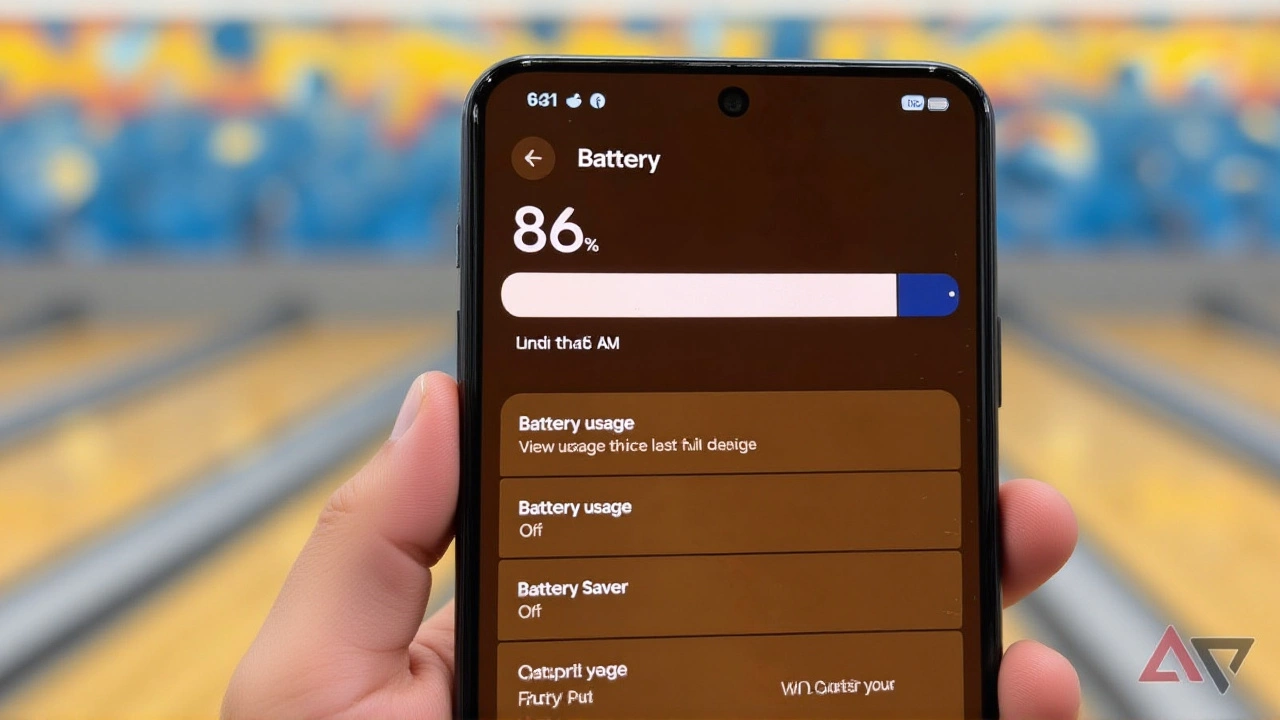
While the path above works for stock Android and most major brands, the exact wording can vary slightly depending on who built your phone. For instance, Samsung Electronics often places these controls under "Advanced Features" rather than "System." Meanwhile, OnePlus might label the section as "Button & Gestures."
If you can’t find the "Gestures" menu immediately, use the search bar within Settings. Type "power button" or "assistant." This usually leads you directly to the relevant configuration page. The key is to look for any option that mentions what happens when you "long press" or "hold" the power key.
It’s worth noting that even after making this change, you can still access Gemini quickly. Most devices allow you to swipe from the corner of the home screen or say "Hey Google" to trigger the assistant. You don’t lose functionality; you just regain control over the physical button.
Why This Matters Beyond Convenience
This might seem like a minor tweak, but it highlights a broader trend in mobile computing. As smartphones become more integrated with AI, the interface is shifting away from direct hardware control toward software-mediated interactions. The power button, once the ultimate symbol of user control (on/off), is becoming just another input method for digital services.
For power users, this shift is jarring. We expect consistency. If I hold the button, I expect the power menu. Period. The fact that this requires manual correction suggests that tech giants are prioritizing new features over established user habits. Until defaults change back, taking thirty seconds to adjust this setting is essential for maintaining a frictionless experience.
Frequently Asked Questions
Will changing this setting disable Gemini completely?
No, changing the power button shortcut does not uninstall or disable Gemini. The AI assistant will still function normally. You can continue to access it by saying "Hey Google," swiping from the edge of your screen, or tapping the microphone icon in Google Search. This change only affects what happens when you physically press and hold the power button.
Why did Google change the default power button behavior?
Google and other manufacturers aim to promote the use of their AI assistants by making them more accessible. By mapping the most frequently used physical button to the assistant, they hope to increase user engagement with voice commands and AI features. However, this convenience comes at the cost of disrupting the traditional workflow for users who primarily use the button for powering on or off the device.
Can I customize the power button to do something else?
On most stock Android devices, your options are limited to either launching the assistant or showing the power menu. Some manufacturers, like Samsung, offer additional options such as launching the camera or activating Bixby. Third-party automation apps like Tasker or MacroDroid can provide more granular control, allowing you to assign specific actions to double-presses or triple-presses, but these require more technical setup.
Does this fix work on all Android phones?
Yes, virtually all modern Android phones running Android 10 or later have this setting. While the exact menu names may differ between brands (e.g., Xiaomi, Huawei, Sony), the functionality exists in the System or Gestures settings. If you cannot find it, searching for "power button" in the Settings app search bar will typically reveal the correct location.